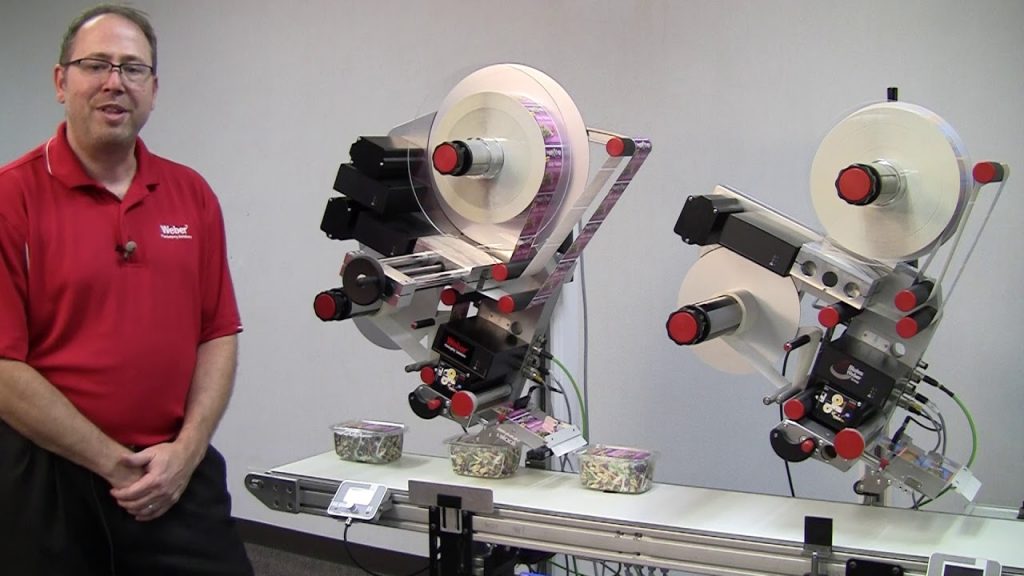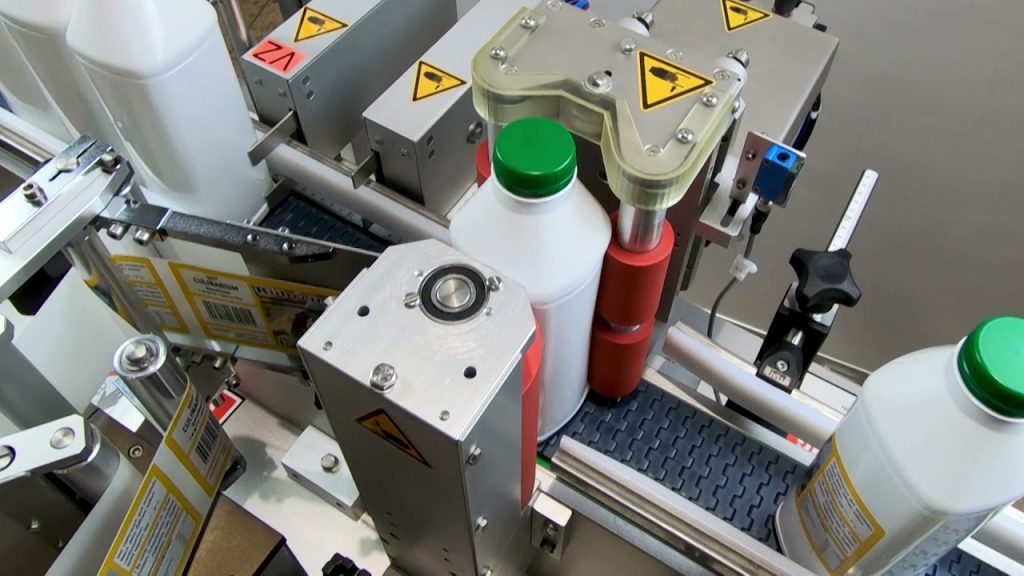
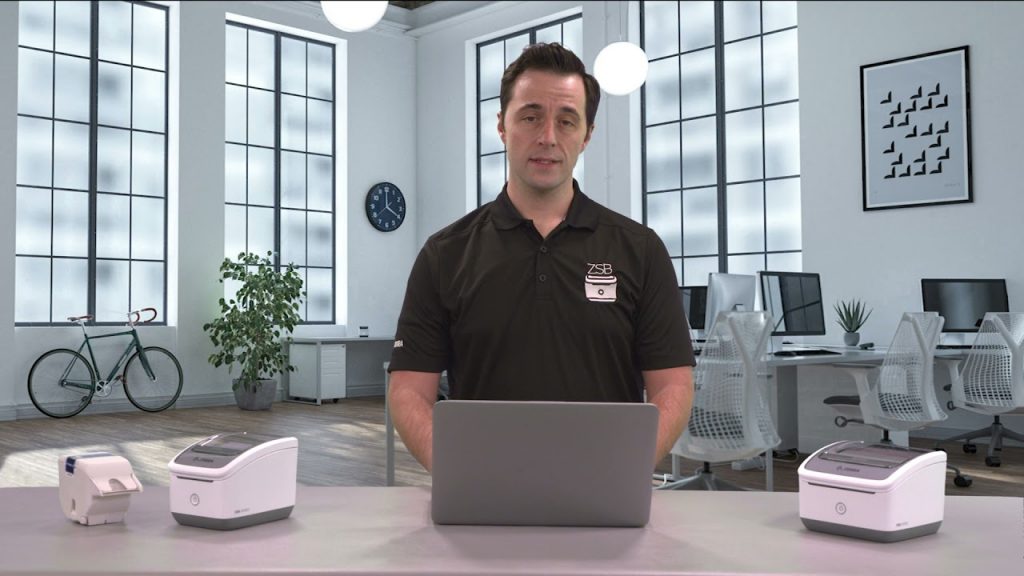
Watch this video to learn how to create a new barcode label using the ZSB Series Label Designer Tool on your PC or Mac. Whether you’re a beginner or an experienced user, this tutorial will guide you step-by-step through the process. If you need assistance with your Barcode Labeling Machine, you’ve come to the right place!
Barcode labeling is an essential aspect of many industries, including retail, logistics, and manufacturing. It enables businesses to streamline operations, track inventory, and improve efficiency. With the ZSB Series Label Designer Tool, creating professional barcode labels has never been easier.
To get started, make sure you have the ZSB Series Label Designer Tool installed on your computer. This software is compatible with both PC and Mac operating systems. If you haven’t installed it yet, you can find the download link in the video description.
Once the software is installed, open the ZSB Series Label Designer Tool. You’ll be greeted with a user-friendly interface that allows you to design and customize your barcode labels. The tool provides a wide range of templates, fonts, and graphics to choose from, making it easy to create labels that suit your specific needs.
To create a new barcode label, click on the “New Label” button. This will open a blank canvas where you can start designing your label. You can add text, images, and barcode elements to your label by simply dragging and dropping them onto the canvas.
The ZSB Series Label Designer Tool supports various barcode formats, including Code 39, Code 128, and QR codes. You can select the barcode format that best suits your requirements and customize its appearance. Adjust the size, color, and position of the barcode to ensure it stands out on your label.
In addition to barcode elements, you can also include other important information on your label, such as product names, prices, and descriptions. The ZSB Series Label Designer Tool allows you to easily add and format text, ensuring that your labels are clear and informative.
Once you’re satisfied with your design, you can save the label as a template for future use. This is particularly useful if you frequently create labels with similar information. Simply select the “Save as Template” option and give your template a name. The next time you need to create a similar label, you can easily load the template and make any necessary adjustments.
When you’re ready to print your barcode label, ensure that your Barcode Labeling Machine is properly connected to your computer. The ZSB Series Label Designer Tool supports various printing options, allowing you to choose the most suitable one for your needs. You can print single labels, multiple labels on a sheet, or even print in bulk.
In conclusion, the ZSB Series Label Designer Tool is a powerful and user-friendly software that simplifies the process of creating barcode labels. Whether you’re new to barcode labeling or an experienced user, this tool provides all the features you need to design professional labels for your business. Watch the video tutorial for a comprehensive guide on how to create a new barcode label using this tool.
Check the coil packing solution with a leading manufacturer for a professional solution just here. Labeling Machine
“Effortless Barcode Label Design and Creation Using a ZSB Series Label Printer and Barcode Labeling Machine – A Step-by-Step Guide”